Subject Line: Include "Tech Support" in your email subject
Include: Your name, school, and a description of the issue
Understanding Your Laptop's Packing Slip
Every laptop from Space Coast STEM comes with a packing slip that includes important information about your device.
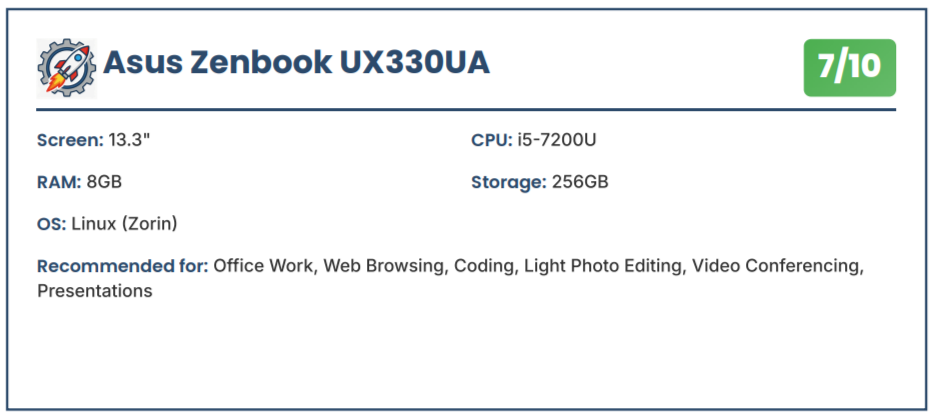
Example of a laptop packing slip
What's on the Packing Slip?
Laptop Model: The brand and model name prominently displayed at the top
Performance Rating: A 1-10 score with color-coded badge (yellow/orange for 1-3, green for 4-7, blue for 8-10)
Screen Size: Display diagonal measurement in inches
CPU: Processor model (e.g., Intel Core i5, AMD Ryzen)
GPU: Graphics card (if present - important for creative work and gaming)
RAM: Memory capacity (4GB, 8GB, 16GB, etc.)
Storage: Hard drive or SSD capacity
Operating System: Usually Linux (Zorin OS) or Windows
Recommended For: List of suitable activities based on the rating and specs
Special Notes: Any unique features or considerations (e.g., "Detachable tablet" , "Upgradable Memory")
Performance Rating Scale
We rate each laptop on a 1-10 scale to help you understand what it can do:
We have minimum requirements for the equipment we distribute, so a low rating does not mean that it is not a capable machine. It is just not meant for handling more demanding tasks. All of our laptops are suitable for basic educational activities.
12345678910
BasicStandardHigh Performance
⭐ Rating 1-3: Basic Performance
Best for: Basic homework, web browsing, email, word processing, and simple research
Need Help? If you have questions or run into issues, email us at info@spacecoaststem.org with "Tech Support" in the subject line.
Setting the Username
Follow these steps to change your username and display name in Zorin OS:
Step 1: Open System Settings
Click on the Menu button in the bottom-left corner of your screen
Click on Settings (the gear icon)
Step 2: Navigate to Users
In the Settings window, click on Users in the left sidebar
You'll see your current user account displayed
Step 3: Unlock Settings
Click the Unlock button in the top-right corner
Enter your password when prompted
Step 4: Change Your Name
Click on your Full Name field
Type your new display name (this is what appears on the login screen)
Press Enter to save
Note: To change your actual username (login name), you may need administrator assistance. Contact your teacher or email us for help with this advanced task.
Adding a User for Parental Controls
Create a new user account with restricted access and parental controls:
Step 1: Open System Settings
Click on the Menu button in the bottom-left corner
Open Settings
Step 2: Go to Users
Click on Users in the left sidebar
Click the Unlock button and enter your password
Step 3: Add New User
Click the Add User button (+ icon)
Choose Standard account type (not Administrator)
Enter the Full Name for the new user
Enter a Username (no spaces, lowercase)
Step 4: Set Password
Choose "Set a password now"
Enter a secure password twice
Click Add to create the account
Step 5: Configure Parental Controls
Select the newly created user account
Click on Parental Controls (if available)
Set restrictions for:
Application usage
Web browsing
Time limits
Tip: Standard user accounts cannot install software or change system settings, providing a safer environment for younger users.
Installing Software
Learn how to install new applications on your Zorin OS laptop:
Method 1: Using the Software Center (Recommended)
Step 1: Open Software Center
Click on the Menu button
Search for and click on Software
Step 2: Search for Software
Use the Search bar at the top
Type the name of the application you want (e.g., "GIMP", "VLC", "LibreOffice")
Browse through the results
Step 3: Install the Application
Click on the application you want to install
Read the description and check the reviews
Click the Install button
Enter your password when prompted
Wait for the installation to complete
Step 4: Launch Your New Application
Click the Menu button
Find your newly installed application
Click to launch it
Popular Free Applications for Students
LibreOffice: Word processor, spreadsheet, and presentation software
GIMP: Image editing (like Photoshop)
Inkscape: Vector graphics editor
Blender: 3D modeling and animation
Audacity: Audio recording and editing
VLC Media Player: Play videos and music
Visual Studio Code: Code editor for programming
Note: You need administrator privileges to install software. If you're using a student account, ask your parent or teacher for assistance.
Safety Tip: Only install software from the official Software Center to ensure it's safe and virus-free!